
A New Way to Experience Online Invitations
Plan in-person or virtual events for your next occasion with our stylish designer templates — ad free!
Plan in-person or virtual events for your next occasion with our stylish designer templates — ad free!
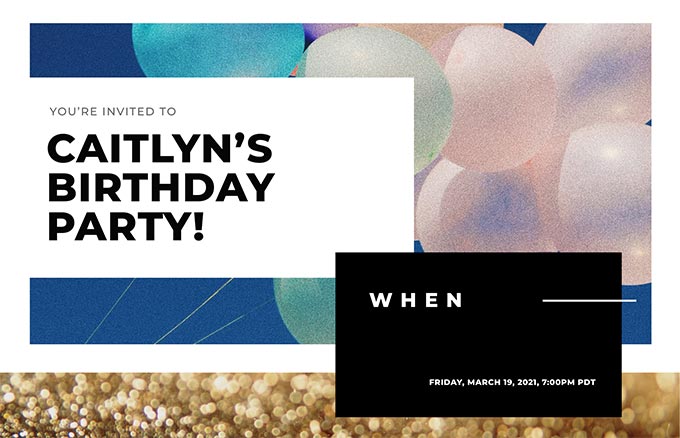




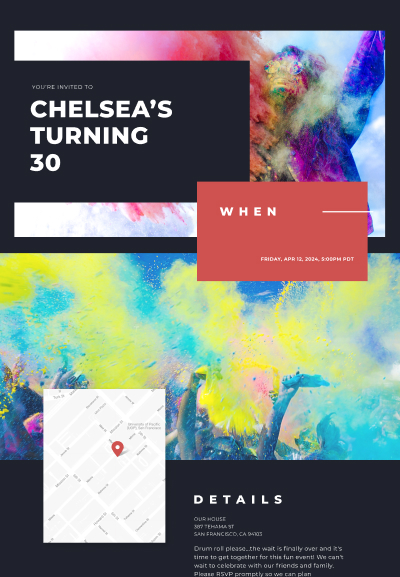
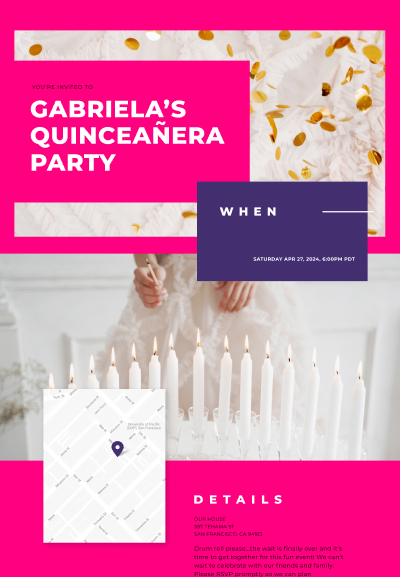
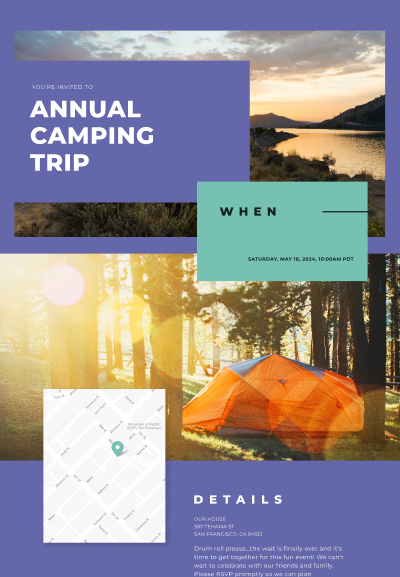
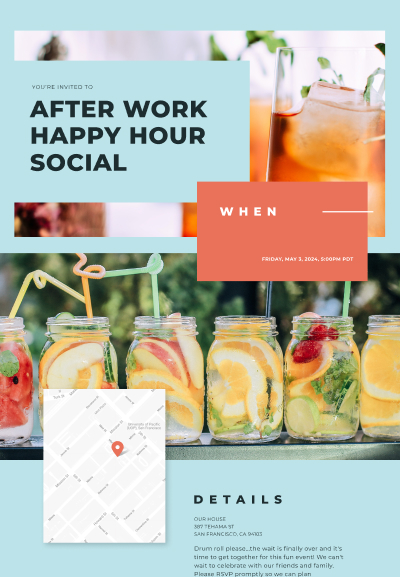
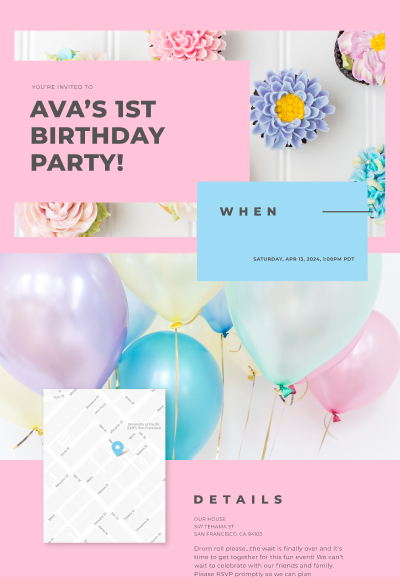
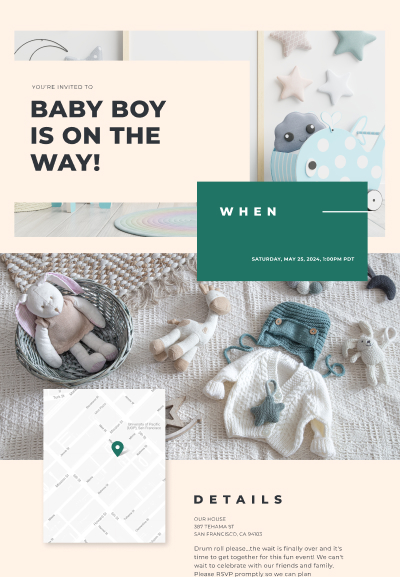
Elevate your invite with our powerful features

Designed to look good on the web, phones and tablets.

Upload your own photos and videos or select from our free, pro galleries.

Choose your guests and we’ll send the invitation for you.

See who has responded, added plus-ones and opened invites.

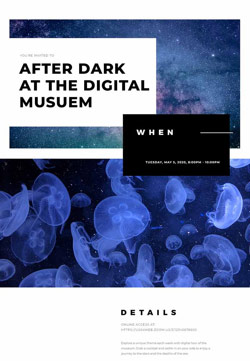



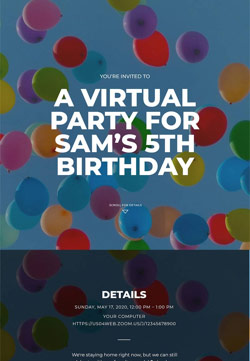


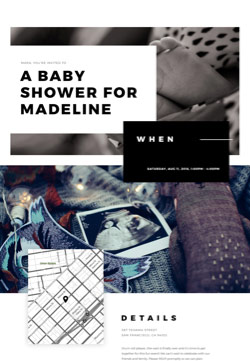

We’ve got you covered with our stylish collection of designs for any occasion.
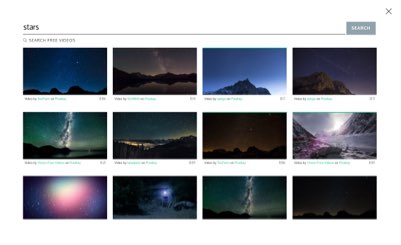
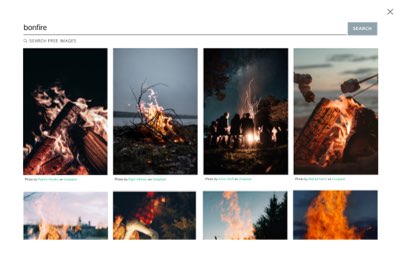
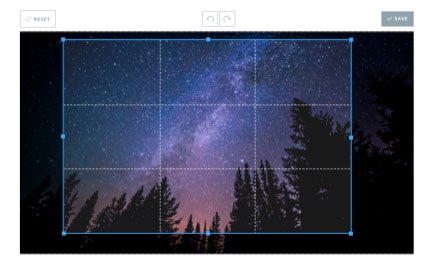
Take it to the next level by customizing with your photos and videos or selecting from our free, pro galleries.
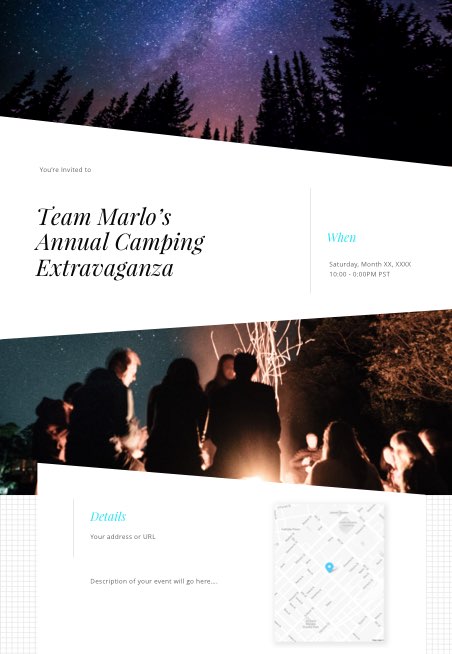
Don’t settle for boring invitations. All of our templates are full-screen, interactive, and put your guests into the experience.
Scroll over the invitation for the full experience!

Support for online events with clickable links, passcodes and timezone controls.

In app tools for private messaging between host, guests or the group.

Import your address book with our easy-to-use tools.

An ad-free experience allows you to focus on the content that matters.

We match up relationships so you never forget a spouse, partner, kids or a friend.

Save-the-date, all-day and multi-day event settings.

Our event went great. I found the app really easy to use for making our invitations. I wouldn’t change anything. My favorite feature was the ability to text the link to invite our friends.
- Taylor
I used Poply for the first time for invitations to my son’s drive by birthday parade… I thought it was great!! Would use again for sure!!
- Joanna
I found Poply by searching the app store looking for an easy text invite. It’s user friendly and fun! Everyone had nice feedback about it, the scrolling aspect to get more info is nice. The graphics are pretty and appealing.
- Autumn
This was perfect for sending out invites to my daughter's virtual birthday party. All of our guests were able to access it easily (even great grandparents) and the party was a huge success!
- Jennifer
[My party] was SO SO MUCH EASIER to organize… You guys saved me from going to the store, buying invitations, buying envelopes and stamps.
- Joe
I feel like I could be an event organizer with this app. Contact import and management is your strong point. The interface is simple yet powerful.
- BusyB3
Poply was really helpful for my baby shower event… It was really easy to use and create a flyer. I had one created in minutes and everyone I invited received and opened the invitation with no problem.
- Clayton
Super easy to use and very efficient. My friends were all wowed by how cute the invite was and I couldn't have been happier with how simple it made getting the info out. I also liked that it can go out via text so you don’t even have to track down email addresses.
- Paula
Yes! You have the freedom to choose the delivery method that works best for each guest. When it’s time to add guests to your Poply invite you can choose to send the invitation to their mobile number or email address. (We even provide tools to quickly import from the address book on your phone!) Once you send the invite we take care of the texting (or emailing) for you.
To learn more about sending invitations with text messages visit our FAQ.
Absolutely! This is one of Poply’s coolest features. (If we do say so ourselves…) You can customize any invitation we offer with your photos or videos — or both! Maybe you’d like to upload a photo of the birthday boy for his 30th bash or a video of waves on the beach to set the proper atmosphere for your luau? Make your invite truly unique when you customize it with your own images.
To learn more about adding photos to your invitations visit our FAQ.
Poply has plenty of pre-made designer invites for many different types of events, but if you don’t find one to match your type of gathering you can easily customize the photos on any of our templates to match the theme of your event perfectly. You can do this by uploading your own photos or videos, or you can select from our gallery of thousands of professional photos/videos.
To learn more about adding photos to your invitations visit our FAQ.
Poply includes a messaging tool that can be used to send updates and additional reminders about your event to your guests. You can choose to send group messages to everyone invited, guests who are attending or guests who have not replied. You can also send private messages to individual guests. If you make a change to your event after you’ve sent invitations to your guests, we’ll prompt you to send a group message to let them know.
To learn more about in-app messaging visit our FAQ.


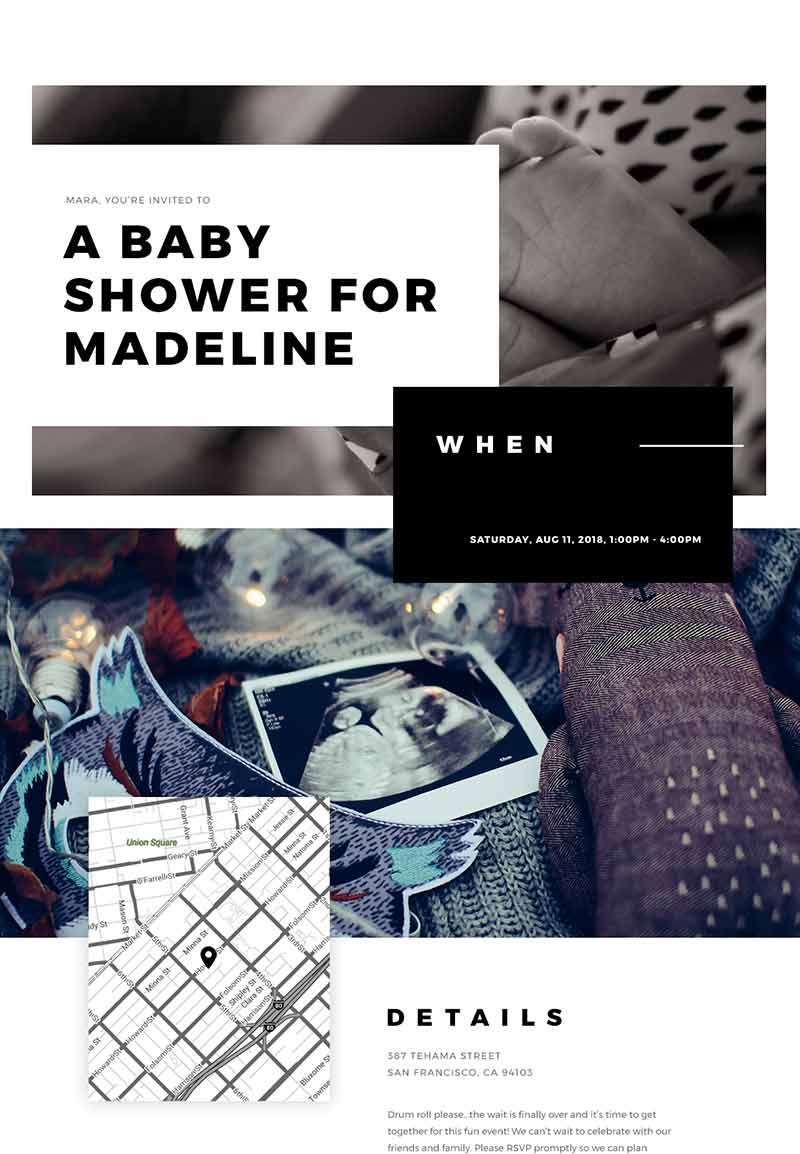
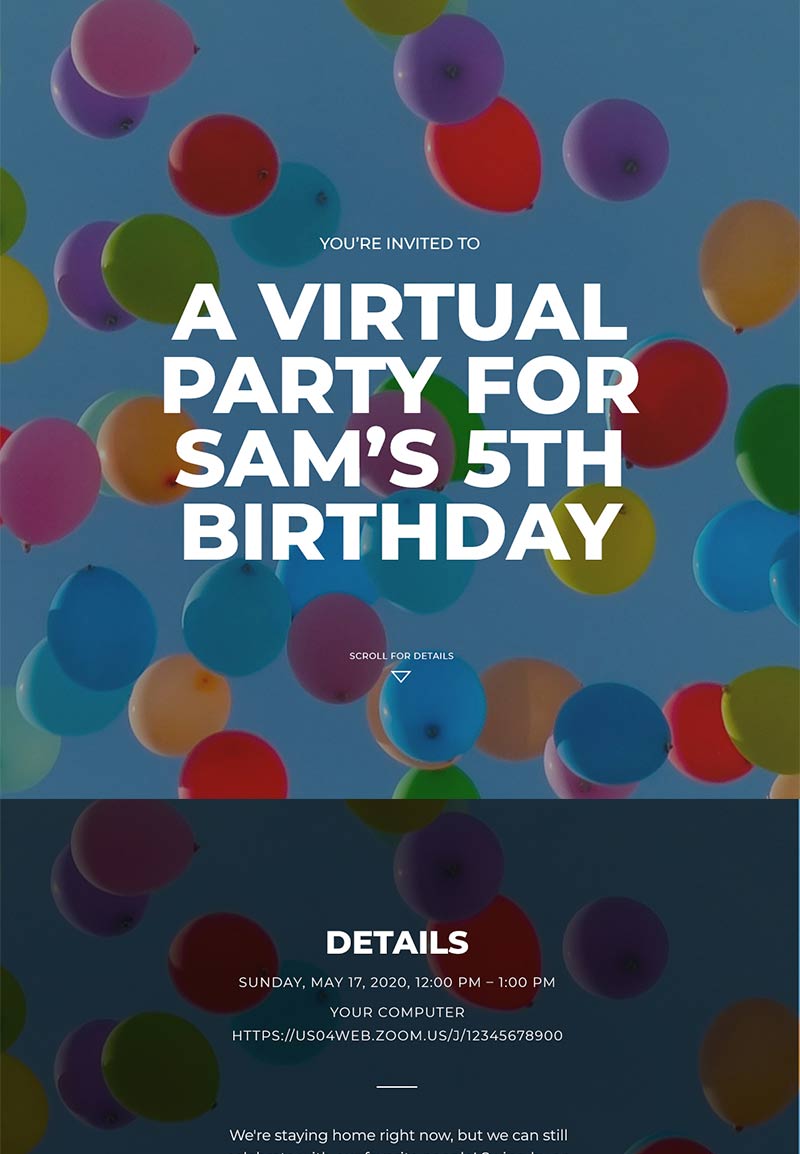
Input the date of your next big event and we’ll send you a reminder to create a Poply invite.
Most invitation websites recreate paper invitations on the computer screen with static text and images of envelopes on a web page. We knew there was a better way, so we set out to create invitations that use the host of technologies available today. Our full-screen, interactive invitations with beautiful videos and photos immerse guests in the mood of the event they’ve been invited to.